

Make something useful · Workflow 01
One product photo.
A short promo video.
Give a product you already sell a little movement. Follow five steps, borrow our prompts, and finish with a video you can actually use.
The starting point → the edit Playable example
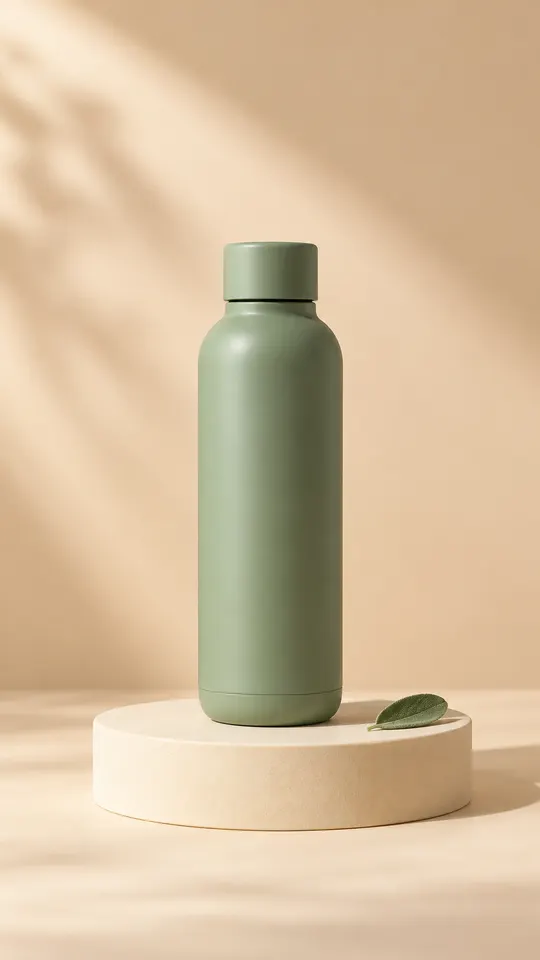
Fictional product; original AI-generated photo. We assembled this actual MP4 locally with a digital zoom and text. It is not a Runway generation or an Adobe Express export.
The whole workflow, at a glance
From one photo to a finished promo.
Follow the arrows. At step 3, choose one motion route. Both finish in the same editor.
- 01 · PrepareChoose your photoYour product, clearly framed.
- 02 · PlanWrite three linesOpening → detail → next step.
- 03 · Choose one
- 04 · EditAdd text & timingArrange an eight-second edit.
- 05 · FinishCheck & exportReview the product. Save MP4.
Select any box to open the matching step. The simple route keeps the original image; review generated motion for changes to the product.
A small project, with a clear finish
Start with what you already have.
For a shop owner, maker or marketer with a finished product photo. The aim is a simple, accurate promo—not a complicated film production.
Your starting kit
- A sharp product photo. Use one you own or are allowed to edit and publish.
- One verified detail. A real colour, material or feature; skip unsupported performance claims.
- One next action. For example, “See the collection,” linked to a real product page when you post.
- Room for text. Leave the product clear of the frame edges.
The tools, kept simple
Adobe Express · the main editor
Animate the photo, add text and download MP4. Start with Free and your own media; premium elements can require payment. Check the plan.
Runway · optional AI motion
Try Gen-4.5 when you want generated movement. It requires Standard or higher and uses credits. You can finish the basic route without it.
Our selection is based on documented features. We have not completed this workflow inside either provider’s signed-in editor. No affiliate links on this page.
Your first eight seconds
One photo. Three beats. Five steps.
Keep the same product in view. Change the message as the video plays.
Example: “A little everyday calm.”
Example: “One bottle. Ready to go.”
Example: “Find your colour.”
This is our editorial shot plan, not a platform rule. The fictional example uses mood copy; for your real product, use the middle beat for a verified detail.
Choose and frame the photo
Pick the clearest image of the actual product. A straight-on shot with a simple background makes a good starting point. Keep the complete product visible; tiny labels and complex reflections need extra checking.
- Open Adobe Express and create a blank vertical video or portrait design in 9:16.
- Upload the photo and position it on the canvas. Start with a portrait layout so you do not have to fix a landscape crop later.
- Leave space for a short headline. Add the logo as a separate layer if you have one.
Ready to move on? You can see the full product and have a clear place for text.
Write three short lines
Use the shot plan above: opening, one product detail, then a next step. Aim for three to six words per line as a starting point, and check readability on a phone. Do not fit a whole product description into eight seconds.
Write the lines yourself, or personalise the copywriting brief below and paste it into an assistant you already use. Keep claims tied to your product information.
Ready to move on? Each line has one job, and every factual claim is checked.
Add a little motion
Start with a gentle photo animation. Choose the optional AI route only if you want to experiment with generated camera movement and can review the product carefully.
Keep the product exactly as photographed.
- Select the photo in Adobe Express and open the animation controls.
- Choose a gentle Zoom effect. Keep the full product in the frame.
- Set or trim the scene to eight seconds. Preview the movement before adding text.
This moves the existing picture. It does not invent a new angle or make the product perform an action. Use your own photo and free elements to avoid premium-asset charges.
Adobe’s photo animation instructions ↗Ready to move on? The movement is calm and the product still looks like the original.
Add text and set the timing
In Express, keep the words as editable text layers above the photo or clip. Give each line its own time window: 0–2, 2–5 and 5–8 seconds. Use the timeline or selected-layer timing controls to trim when it appears.
Use one legible font, strong contrast and comfortable space around the edges. Preview in a small window to approximate phone reading. Put a real next step in the final beat; a printed address inside a video is not a clickable button.
Sound is optional. Our example is silent. Add music or a voiceover only when you have the rights and the promo still makes sense with the sound off.
Adobe’s layer-timing guide ↗ · Menu wording can vary by editor version.
Download, watch, then share
Choose Download → MP4 where offered. Keep the portrait 9:16 layout. Aim for 1080 × 1920 when supported by your source and editor; our downloadable example is 720 × 1280. Enlarging a 720p AI clip does not add native detail.
Open the downloaded file on your phone. Check the first frame, each text change and the last frame. Confirm that no premium asset blocks export and no unexpected watermark appears. Add the real product destination in the post or ad setup.
Do not start a paid trial just to finish this example. If a paid element blocks export, replace it with your own media or a free alternative.
Example transcript and how we made it
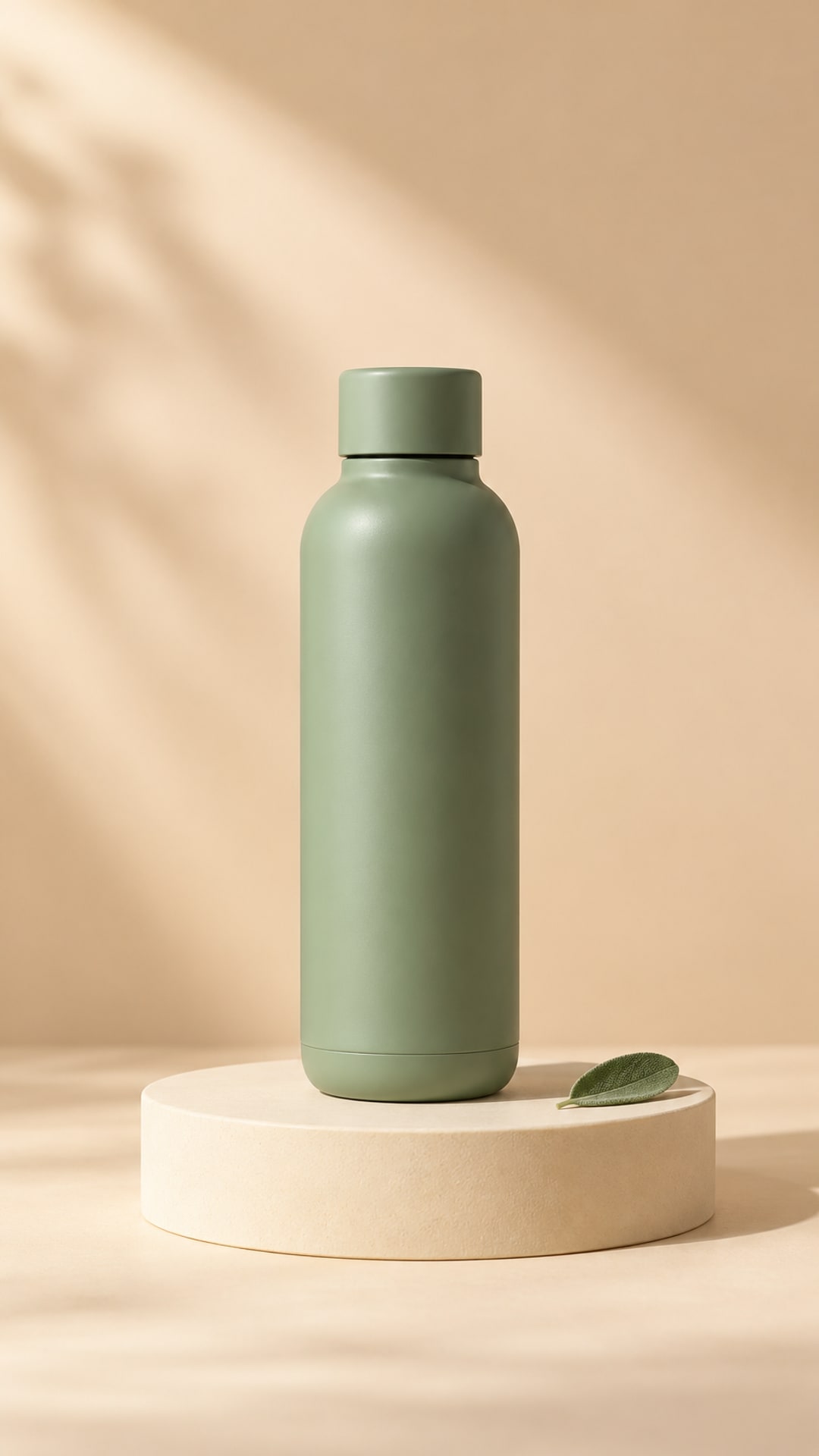
0–2s: “A little everyday calm.” 2–5s: “One bottle. Ready to go.” 5–8s: “Find your colour.” A fictional sage bottle stays on a plinth while the photo slowly enlarges. The visible demo label remains on screen. There is no audio.
We created the source photo with the built-in image-generation tool, then used FFmpeg to make an eight-second, 24 fps, 720 × 1280 MP4 with a 4% digital zoom and three text overlays. This demonstrates the simple editing route’s intended structure. We did not run a Runway video model or export this file from Express, and have not measured marketing performance.
Make it yours
Build your brief. Copy the prompt.
Replace the sample details below. This is a prompt builder, not a video generator.
For example: colour, material or capacity from the actual specification.
These fields build a prompt on your device. They do not upload your photo, call an AI service or generate a video.
Create a three-beat script for an 8-second vertical product video.
Product: Sage reusable bottle
One verified detail: Sage green finish
Call to action: Find your colour

0–2 seconds: a short opening line.
2–5 seconds: the verified detail.
5–8 seconds: the call to action.

Keep each line to about 3–6 words. Use only the supplied facts. Keep text separate from the picture so I can add it in the editor. Ask about missing information rather than inventing claims, prices, discounts or testimonials. Return the three lines with their timings.
Paste into an assistant you already use, or write the three lines yourself. Review any generated copy before placing it in the editor.
Optional: prompts for AI motion
Use one prompt per shot with the product photo attached in Runway. Describe the movement; the image already supplies the product and setting. These are original, untested starter prompts based on the provider’s prompting guidance.
Gentle push-in
The camera slowly pushes in toward the product. The product remains stationary on the plinth. Soft, steady studio light. One continuous shot.
Original starter prompt; not a tested Runway output.
Small camera slide
The camera slides very slightly from left to right at a steady pace. The product stands still. The shot stays close to the starting angle. One continuous shot.
Original starter prompt; not a tested Runway output.
When the first version is not quite right
Fix the smallest thing first.
The cap, label or product shape changes
Go back to the original photo. Reduce the AI camera movement and try a single gentle push-in. If exact identity still drifts, use photo animation. A polished clip is unsuitable if it misrepresents what you sell.
The product gets cropped out
Start with a portrait crop that leaves space around the whole product. Reduce the Zoom intensity and preview the first and last frame. Changing the canvas shape later can crop both the product and the text.
The AI clip is only five seconds
Our AI route generates one five-second shot. Add the original photo as a three-second closing scene in the editor; let the call to action sit there. Do not stretch the product or promise that a short generation is already the full eight-second edit.
The words are misspelled or wobble
Keep promotional copy out of the generation prompt. Type it as a separate editor text layer so spelling, timing and positioning stay under your control. Check any lettering already on the product in every frame.
Download asks me to upgrade
Check for premium templates, fonts, effects or stock assets. Replace them with your own media and free elements. A free editor plan does not make every asset or AI generation feature free.
The promo feels busy or needs music
Start with one product, one movement and three short lines. The example works without sound. Add music only if you have a licence covering the intended channel and commercial use; otherwise leave it silent.
Before it leaves your device
Six checks before you post.
The clip should show what you actually sell. Work through the downloaded file once.
0 of 6 checks completeCheck the downloaded file, not just the editor preview.
Research & transparency
What we checked. What we made.
We reviewed official Adobe and Runway documentation on 28 October 2026 for photo animation, timeline editing, export, model access, prompting and credits. Our instructions are a researched workflow; the playable file is our own local edit. The provider steps and AI prompts have not been validated through a signed-in generation/export session.
The sample image and copy describe a fictional product. Use your actual product photograph for advertising. Runway permits commercial use subject to its terms; that does not grant rights to someone else’s photos, trademarks or music. Confirm the permissions and plan terms for your own project.
Official sources and what each supports
- Adobe Express: photo animation ↗Upload a photo, apply animation including Zoom, add text, and download animation as MP4.
- Adobe Express: plans and feature comparison ↗Free editing and animation features; premium assets and features have separate access requirements.
- Adobe Express: animation overview ↗In, Looping and Out effects and controls for timing and motion.
- Adobe Express: create and edit a video ↗Media, text and timeline editing, scene duration and downloading.
- Adobe Express: adjust layer timing ↗Position and trim the time that each text layer appears.
- Runway: creating with Gen-4.5 ↗Standard or higher; 12 credits per second; image-to-video supports portrait 9:16 at 720 × 1280; 2–10 seconds.
- Runway: image-to-video prompting ↗The image sets the composition; start with a simple description of the movement.
- Runway: current plans ↗Model access, credit allowances and watermark differences. Check local checkout rather than assuming a per-video cash price.
- Runway: commercial use of created content ↗Runway states that it does not impose non-commercial restrictions on created content. This does not establish rights to third-party inputs.
Feature access and prices can change. Use the current account settings before spending credits. Documentation checks are not a guarantee of output quality, time saved or sales.